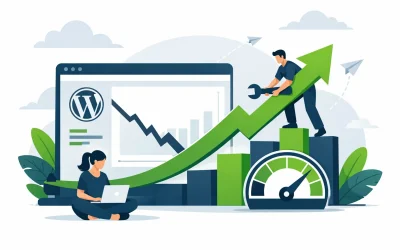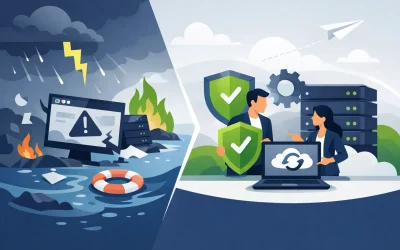
A WordPress site usually does not fail all at once. It gets slower after a plugin update, throws a login error after a theme change, or starts timing out when traffic picks up. That is why understanding 10 common WordPress problems matters for business owners, bloggers, developers, and agencies alike. Small issues can turn into lost leads, lower search visibility, and unnecessary downtime if they are not handled early.
The good news is that most WordPress problems follow familiar patterns. Once you know what to look for, you can diagnose them faster and decide whether the fix belongs at the site level, the plugin level, or the hosting level.
1. Slow website performance
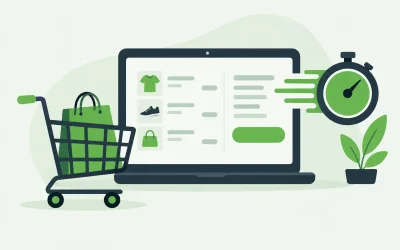
Speed problems are often blamed on WordPress itself, but WordPress is usually only part of the picture. A slow site can come from oversized images, too many plugins, bloated themes, poor caching, or underpowered hosting resources. Sometimes it is a traffic issue. Other times the site is loading external scripts that delay everything else.
The first step is narrowing down where the slowdown starts. If the admin dashboard is slow along with the front end, that may point to database strain, plugin conflicts, or server limits. If only certain pages lag, large media files or page builder elements may be the problem. Caching, image compression, and lightweight themes often help, but those fixes only go so far if the hosting environment cannot keep up.
For growing business sites and online stores, performance is not just a technical metric. It affects conversions, ad costs, and customer trust.
2. The white screen of death
One of the most frustrating entries on any list of 10 common WordPress problems is the white screen of death. You load the page and see nothing – no content, no menu, no error message.
This usually comes from a PHP memory issue, a broken plugin, or a theme conflict. A recent update is often the trigger. If you can still access the dashboard, disable plugins one by one and switch to a default theme to isolate the source. If you cannot log in, the same process can be done through your file manager or hosting control panel by renaming the plugins folder or active theme folder.
It is a good reminder that updates should be done carefully. Backups matter here, because a fast rollback is often better than troubleshooting a production site under pressure.
3. Internal server errors
A 500 internal server error is vague by nature. It tells you something failed, but not exactly what. In WordPress, this can come from corrupted .htaccess rules, exhausted PHP memory, plugin conflicts, or permission issues.
Start with the most common causes. Regenerating the .htaccess file, increasing PHP memory limits, and checking recently changed plugins or themes can resolve many cases. If the issue appeared right after a migration or server change, server configuration deserves a closer look.
This is where hosting support can make a real difference. A generic error message is much easier to fix when server logs and environment settings are easy to access.
4. Login problems and locked-out admin access
Getting locked out of wp-admin can interrupt publishing, order management, client updates, and routine maintenance. Sometimes the cause is simple, like a forgotten password or a cached login page. Other times it is tied to security plugins, corrupted login URLs, database issues, or too many failed login attempts.
If password reset emails are not arriving, check email delivery before assuming WordPress is broken. If a custom login plugin changed the admin path, reverting that setting may restore access. Security tools can also block legitimate users if rules are too aggressive.
For business-critical sites, having secure but practical login protection matters. Strong passwords, two-factor authentication, and limited login attempts help, but they should not create a support emergency every time a user mistypes a password.
5. Plugin conflicts after updates
Plugins extend WordPress, but they also introduce risk. A plugin conflict can break layouts, disable checkout functionality, cause fatal errors, or slow the site down dramatically. This often happens after updating WordPress core, a plugin, or PHP.
The challenge is that not every plugin is coded to the same standard. Some developers keep products current and tested. Others lag behind WordPress releases. When a conflict appears, deactivate plugins in sequence and test the site after each change. That usually identifies the culprit.
There is a trade-off here. Running outdated plugins is a security risk, but updating everything at once on a live site can create downtime. A staging environment, reliable backups, and a managed update process are often worth it, especially for agencies and stores with active traffic.
6. Theme issues and broken layouts
A site that suddenly looks wrong is often dealing with a theme problem, not a content problem. Menus disappear, mobile spacing breaks, headers overlap, or widgets stop rendering as expected. These issues can come from theme updates, plugin conflicts, custom CSS changes, or incompatibility with the current WordPress version.
If the layout only breaks on one device type, test responsive settings first. If the problem is sitewide, compare recent changes and review whether a builder plugin or theme framework updated behind the scenes. Child themes help protect customizations, but not every site is built with that structure in place.
For companies that rely on their website as a sales channel, design stability matters just as much as uptime. A site does not need to be fully offline to lose revenue.
7. Security breaches and malware infections
Security belongs in any serious discussion of 10 common WordPress problems because WordPress sites are frequent targets. The issue is not that WordPress is inherently unsafe. The real problem is weak passwords, outdated plugins, outdated themes, unsecured hosting setups, and neglected maintenance.
Warning signs include strange redirects, unknown admin users, injected spam pages, browser warnings, and sudden traffic drops. Cleaning malware is only part of the response. You also need to find the entry point. If you remove the symptom but leave the vulnerability open, the problem often returns.
Practical protection includes regular updates, strong authentication, web application firewall tools, malware scanning, SSL, and isolated hosting environments where appropriate. For many site owners, prevention costs far less than cleanup.
8. Database connection errors
The message “Error establishing a database connection” tends to stop people cold because it makes the entire site unavailable. In most cases, the cause is one of a few things: incorrect database credentials, a corrupted database, a database server issue, or resource exhaustion.
If the site was recently migrated, double-check the database name, username, password, and host values in wp-config.php. If credentials are correct, the database may need repair, or the server may be hitting limits under heavy load. This is common on sites that outgrow entry-level resources but remain on the same plan.
The bigger lesson is that site growth changes infrastructure needs. A hosting setup that works for a basic brochure site may not be enough for a busy store, agency portfolio network, or content-heavy blog.
9. Failed updates and maintenance mode issues
WordPress updates usually take seconds, but when they fail, sites can get stuck in maintenance mode or end up with partial updates that break functionality. This can happen because of file permission problems, timeouts, low memory, or interrupted server processes.
If the site is stuck showing a maintenance message, removing the temporary maintenance file may restore access. But that only solves the symptom. The underlying reason for the failed update still needs attention, especially if server limits or permission settings are involved.
Automatic updates are convenient, but they are not risk-free. For low-impact plugins, they can save time. For major plugins, themes, and core updates on business sites, a controlled process is safer.
10. Email not sending from WordPress
This problem is easy to overlook until contact forms stop delivering leads or password reset emails never arrive. WordPress email failures usually come from server mail configuration, poor sender reputation, or forms that rely on the default PHP mail function.
The fix often involves proper SMTP configuration, domain authentication, and checking whether the hosting environment is set up for reliable transactional mail. Contact form plugins can also be part of the issue if they are outdated or misconfigured.
For small businesses, this is more than a technical annoyance. If quote requests, booking confirmations, or order notifications fail silently, revenue can disappear without warning.
How to prevent the most common WordPress problems
No setup can eliminate every issue, but a few habits reduce risk significantly. Keep WordPress core, plugins, and themes updated on a schedule. Use backups that are easy to restore, not just easy to create. Avoid installing plugins you do not actively need. Monitor uptime, performance, and security so you can spot changes early.
It also helps to match your hosting environment to the site you are actually running, not the one you launched months ago. Shared hosting can be enough for many small sites, but resource-heavy WordPress installs, WooCommerce stores, and client projects often benefit from managed WordPress, cloud, or VPS infrastructure. Charter Hosting supports that kind of growth with options that scale as site demands change.
Most WordPress issues are manageable when the foundation is stable. If your site is fast, backed up, secured, and hosted on infrastructure that fits its workload, problems tend to stay smaller, easier to fix, and far less disruptive.