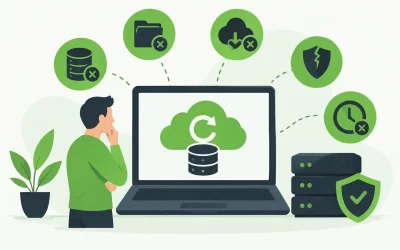
A VPS gives you more control than shared hosting, but that control comes with more responsibility. So, does VPS hosting include backups? Sometimes, but never assume it does. Backup coverage varies by provider, plan, server configuration, and whether you purchase a separate backup service.
For a business website, online store, agency client site, or custom application, the distinction matters. A server failure, accidental deletion, failed update, malware incident, or database error can turn into a costly outage if you do not have a recent, tested copy of your data.
Does VPS Hosting Include Backups by Default?
Some VPS plans include automated backups, snapshots, or recovery tools. Others offer them as an add-on. Many unmanaged VPS plans place backup responsibility entirely on the customer. Even when a provider maintains infrastructure-level copies, those copies may be intended for disaster recovery rather than restoring an individual website, file, mailbox, or database on request.
The only reliable answer is in the plan details and service terms. Before choosing a VPS, confirm whether backups are included, how often they run, how long they are retained, what data they cover, and whether restores carry a fee.
A VPS backup can mean several different things. A full server backup captures the virtual machine and its configuration. A website backup may include site files and databases but exclude server settings. A database backup can restore application data without restoring themes, plugins, uploads, or custom code. Snapshots are useful, but they are not always a substitute for an independent backup strategy.
Why VPS Backups Are Different From Shared Hosting Backups
Shared hosting platforms often provide a more managed experience. The hosting company controls the environment, standardizes configurations, and may include routine account-level backups as part of the service. With a VPS, you may have root access, custom software, multiple websites, cron jobs, staging environments, and application-specific data. Those variables make backup management more complex.
This is especially true with unmanaged VPS hosting. The provider is generally responsible for the physical servers, network, and virtualization platform. You are generally responsible for the operating system, control panel, websites, databases, security settings, updates, and data protection inside your virtual server.
Managed VPS hosting can reduce that workload, but managed does not automatically mean fully backed up. Management may cover monitoring, patching, or support for the server environment while backup retention remains a separate service. Ask direct questions rather than relying on labels.
What to Verify Before You Rely on VPS Backups
Backup availability alone is not enough. A useful backup must be complete, current, accessible, and restorable within the time your business can tolerate being offline.
Start by checking the backup schedule. Daily backups are a practical baseline for many business websites. High-volume eCommerce stores, membership platforms, booking systems, and applications that process frequent transactions may need more frequent database backups. If your store receives orders all day, restoring last night’s database may mean losing a full day of sales records.
Next, look at retention. A provider may create daily backups but retain them for only a few days. That can be a problem when malware sits unnoticed for a week or a bad plugin update causes issues that are discovered later. Longer retention provides more recovery points and a better chance of restoring a clean version.
Also confirm the backup scope. Your plan should clearly state whether it includes:
- Website files, including uploads, themes, plugins, and custom code
- Databases, including WordPress, customer, order, and application data
- Email data, if email is hosted on the VPS
- Server configuration, control panel settings, and installed applications
- Multiple accounts or sites hosted on the same VPS
Finally, ask how restoration works. Can you restore an individual file, a database, a single website, or the complete server? Is self-service restoration available through a control panel, or must you open a support request? Fast recovery is valuable, but only if the process is clear when an urgent issue occurs.
Snapshots, Backups, and Replication Are Not the Same
These terms are often used interchangeably, but they serve different purposes.
A snapshot is a point-in-time image of a virtual server. It can be useful before making a major change, such as upgrading an operating system, modifying server settings, or deploying a new application release. However, snapshots may be stored within the same provider environment and can be limited in retention or frequency.
A backup is a separate copy of your data designed for recovery. It should follow a schedule, retain multiple versions, and ideally be stored separately from the production server. If the entire server is compromised or a configuration error is copied into a snapshot, a separate backup gives you another recovery option.
Replication focuses on availability. It copies data or services to another system so workloads can continue if a server fails. Replication is useful for reducing downtime, but it can also replicate accidental deletions, corruption, or ransomware-encrypted files. It should complement backups, not replace them.
A Practical Backup Approach for VPS Hosting
The strongest approach is layered. Use provider-level backups or snapshots where available, then maintain an additional independent copy of critical data. That way, you are not relying on a single recovery method, storage location, or retention policy.
For a typical WordPress business site, this usually means automated backups of files and databases, stored on a defined schedule, with copies retained long enough to identify problems. Before plugin updates, theme changes, migrations, or server-level changes, create an on-demand backup or snapshot as well.
For custom applications, backup planning should account for the database first. Application files can often be redeployed from source control, but transaction data, user records, uploads, and configuration values may be harder to recreate. Coordinate backup timing with your development team so database backups are consistent with the application state.
Agencies and resellers should also consider account separation. If one VPS hosts multiple client websites, a single full-server restore could affect every client. Individual site and database backups make it easier to recover one account without disrupting the rest.
Backup Security Matters Too
A backup is valuable only if an attacker cannot easily destroy it. If malware gains access to your VPS with administrative credentials, locally stored backups may be at risk along with the live site.
Protect backup systems with strong, unique credentials, restricted access, and multi-factor authentication where available. Keep backup destinations separate from the production server. Encryption is also worth considering for backups that contain customer records, contact information, payment-related data, or other sensitive business information.
Do not overlook monitoring. Failed backup jobs can go unnoticed for weeks unless someone receives alerts and reviews reports. A backup schedule without confirmation is simply a plan, not proof of protection.
Test Restores Before an Emergency
The best time to learn whether a backup works is not during a website outage. Schedule periodic restore tests in a safe location, such as a staging environment or temporary directory. Confirm that files are complete, databases import correctly, the application loads, and recent changes are present.
Testing also reveals practical recovery details: how long a restore takes, whether permissions need to be repaired, and whether DNS, email, or third-party integrations require attention afterward. Those answers help you set realistic expectations for downtime.
If you need a VPS environment that balances performance, control, and dependable support, Charter Hosting can help you identify the level of management and protection that fits your workload. The right setup is not just about having a backup checkbox on a plan. It is about knowing that your business can recover when a routine mistake becomes a real interruption.