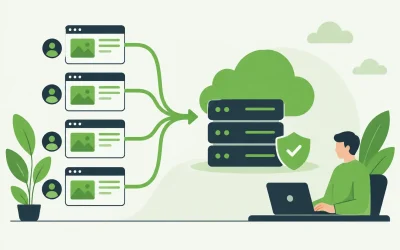
A 502 Bad Gateway error means that one server acting as a gateway or proxy received an invalid response from another server it was trying to communicate with.
In simple terms, your browser successfully reached a server, but that server could not get a valid response from the upstream server responsible for processing the request.
A 502 error is usually a temporary server-side problem, but it can also be caused by web server configuration, PHP-FPM problems, overloaded servers, DNS issues, firewalls, reverse proxies, or content delivery networks.
What Causes a 502 Bad Gateway Error?
A 502 error can occur for several reasons, including:
- An upstream server that is offline or unavailable
- PHP-FPM not responding
- Server resource exhaustion
- Incorrect reverse proxy configuration
- Apache or Nginx communication problems
- Application crashes or timeouts
- DNS configuration problems
- CDN or proxy service issues
- Firewall rules blocking communication between servers
- Incorrect proxy or backend server addresses
- Temporary hosting infrastructure problems
The exact cause depends on how the website and hosting environment are configured.
How to Fix a 502 Bad Gateway Error
1. Refresh the Page
Start by refreshing the webpage.
A 502 error is often temporary and may occur because an upstream server was briefly unavailable or overloaded.
Wait a few moments and reload the page before trying additional troubleshooting steps.
2. Try Another Page on the Website
Visit the website’s homepage or another page.
If only one page produces the error, the problem may be related to a specific application, script, or backend process.
If the entire website returns a 502 error, the problem is more likely related to the web server, application server, proxy, or hosting infrastructure.
3. Clear Your Browser Cache
A 502 error is normally generated by the server rather than your browser, but clearing your browser cache can help eliminate outdated cached content.
After clearing the cache, reload the website and try again.
4. Try a Private or Incognito Window
Open the website in a private or incognito browser window.
If the website works normally there, cached files, cookies, or browser extensions may be contributing to the issue.
5. Try Another Browser, Device, or Network
Try accessing the website from another browser, computer, phone, or internet connection.
If the 502 error appears everywhere, the problem is almost certainly occurring on the website or hosting infrastructure rather than your device.
6. Wait a Few Minutes
Many 502 errors are temporary.
A server may be restarting, experiencing increased traffic, or temporarily unable to communicate with another service.
Waiting a few minutes and trying again may resolve the problem without any additional action.
7. Contact the Website Owner
If you are a visitor and the 502 error continues, contact the website owner or administrator.
Because the error usually involves communication between servers, resolving it will often require access to the website’s hosting environment.
What If You Own the Website?
If you own the website, a 502 Bad Gateway error usually means that your front-end web server, proxy, or CDN cannot communicate properly with the backend service responsible for processing the request.
Website owners should investigate:
- Web server error logs
- PHP-FPM status and logs
- Apache or Nginx configuration
- Application server availability
- Server CPU and memory usage
- Proxy and upstream server configuration
- DNS records
- Firewall rules
- CDN configuration
- Recent server or website changes
The web server logs will often identify the upstream server or service that failed to respond correctly.
Check Your Web Server Error Logs
Your web server error logs are one of the best places to start troubleshooting a 502 error.
Depending on the server configuration, you may see messages such as:
connect() failed while connecting to upstreamor:
upstream prematurely closed connectionThese messages can help identify whether the problem involves PHP-FPM, another web server, an application service, or a reverse proxy.
Check PHP-FPM
On websites that use PHP-FPM, a stopped or unresponsive PHP-FPM service is a common cause of 502 Bad Gateway errors.
Check whether the appropriate PHP-FPM service is running and whether its worker processes are functioning correctly.
Problems can occur because of:
- PHP-FPM service failures
- Too few available PHP-FPM workers
- PHP processes consuming excessive memory
- Incorrect PHP-FPM socket configuration
- Incorrect permissions on the PHP-FPM socket
- Application processes crashing
If PHP-FPM is repeatedly failing, review its logs before simply restarting the service.
Check PHP-FPM Socket Configuration
Web servers such as Apache and Nginx commonly communicate with PHP-FPM through a Unix socket or TCP connection.
If the web server is configured to use the wrong socket or PHP version, it may be unable to reach PHP-FPM and return a 502 error.
Confirm that the configured PHP-FPM socket actually exists and matches the PHP version assigned to the website.
Check Server Resources
A server that is running out of resources may stop responding to requests properly.
Check the server for excessive:
- CPU usage
- Memory usage
- Swap usage
- Disk usage
- Disk I/O
- PHP-FPM processes
- Database connections
If the server is overloaded, the web server may be unable to communicate with backend services quickly enough to complete requests.
Check Apache or Nginx Configuration
Incorrect proxy or upstream configuration can cause a 502 error.
Review any settings related to:
- Reverse proxy configuration
- FastCGI configuration
- ProxyPass directives
- Upstream servers
- Backend ports
- Unix socket paths
- Virtual host configuration
If the error started immediately after modifying Apache or Nginx, review the recent configuration changes.
Check Your Application
A backend application that crashes or fails to respond can also cause a 502 error.
This may include:
- PHP applications
- Node.js applications
- Python applications
- Application servers
- API services
- Custom backend processes
Review application logs for fatal errors, crashes, memory problems, or failed connections.
Check Your CDN or Reverse Proxy
If your website uses a CDN or reverse proxy, the 502 response may be generated before the request reaches your origin server.
The proxy may be unable to connect to the origin server because of:
- An unavailable origin server
- Incorrect DNS records
- Blocked proxy IP addresses
- SSL or TLS configuration problems
- Firewall restrictions
- Connection failures
Check the CDN or proxy provider’s dashboard and logs for additional information.
Check DNS Records
Incorrect DNS records can cause a proxy or gateway to send requests to the wrong server.
Confirm that your domain’s A and AAAA records point to the correct server IP addresses.
If you recently changed servers or DNS records, keep in mind that cached DNS information may take time to update across different networks.
Check Firewall Rules
A firewall can cause a 502 error if it blocks communication between a gateway and the backend server.
Review:
- Server firewall rules
- Hosting provider firewall rules
- Web application firewall settings
- CDN IP allowlists
- Reverse proxy access rules
Make sure legitimate communication between your proxy, web server, PHP-FPM service, and other backend services is permitted.
Check Recent Server Changes
If the 502 error appeared suddenly, review any changes made immediately before the problem started.
Recent changes may include:
- Changing PHP versions
- Updating PHP-FPM settings
- Editing Apache or Nginx configuration
- Changing firewall rules
- Updating a CDN configuration
- Changing DNS records
- Installing or updating server software
- Moving the website to another server
Temporarily reversing the most recent change can help identify the source of the problem.
What’s the Difference Between a 500 and 502 Error?
A 500 Internal Server Error means the server encountered an unexpected problem while processing the request.
A 502 Bad Gateway error means one server was acting as a gateway or proxy and received an invalid response from another server.
In simple terms:
500: Something failed inside the server processing the request.
502: One server could not get a valid response from another server.
What’s the Difference Between a 502 and 503 Error?
A 502 Bad Gateway error means a gateway or proxy received an invalid response from an upstream server.
A 503 Service Unavailable error generally means the server or application is temporarily unable to handle the request.
In simple terms:
502: Communication between servers failed.
503: The service is temporarily unavailable.
What’s the Difference Between a 502 and 504 Error?
A 502 Bad Gateway error means the gateway received an invalid response from the upstream server.
A 504 Gateway Timeout error means the gateway did not receive a response from the upstream server within the allowed amount of time.
In simple terms:
502: The upstream server returned an invalid response.
504: The upstream server took too long to respond.
Still Getting a 502 Error?
If you continue receiving a 502 Bad Gateway error, contact the website owner or hosting provider.
When requesting assistance, include:
- The affected domain name
- The exact URL producing the error
- What you were doing when the error occurred
- The approximate time of the error
- Whether the error affects the entire website or only certain pages
- Any recent website or server changes
- A screenshot of the error, if available
The approximate time of the error is especially helpful because support staff can compare it with entries in the web server, PHP-FPM, proxy, and application logs.
Need Help With Your Charter Hosting Website?
If your website is hosted with Charter Hosting and you are experiencing repeated 502 errors, our support team can help investigate the problem.
Sign in to the
Charter Hosting Client Area
and
open a support ticket
with the affected domain name and a description of the issue.
We’ll help determine whether the 502 error is being caused by PHP-FPM, web server configuration, server resources, DNS, firewall rules, a CDN, an application, or another hosting-related issue.